Vendor app
Every seller, equipped.
Your sellers run their side of your marketplace from one app. A new order takes over the screen and rings, they accept with a prep time, and they keep their own menu current. You never edit a listing for them.
- Phone or tablet
- Real-time orders
- English + Arabic
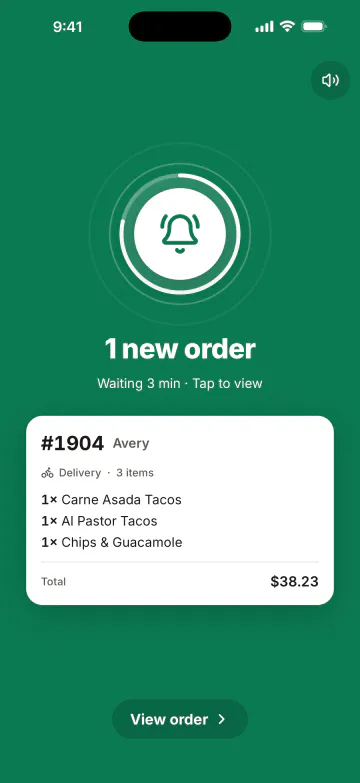
One order, four taps.
The seller is cooking, packing, or serving the person in front of them. Every action is one tap.
-
It rings
A customer checks out on your marketplace. The order takes over the seller's screen, with a ring.
-
Accept
The seller taps accept and picks a prep time. The customer's tracking screen updates at once.
-
Ready
Packed and waiting. One tap marks it ready, for the driver or for the customer on a pickup order.
-
Handed over
The driver collects it and the order moves to out for delivery. The seller is on to the next one.
Four screens run a seller’s day.
-
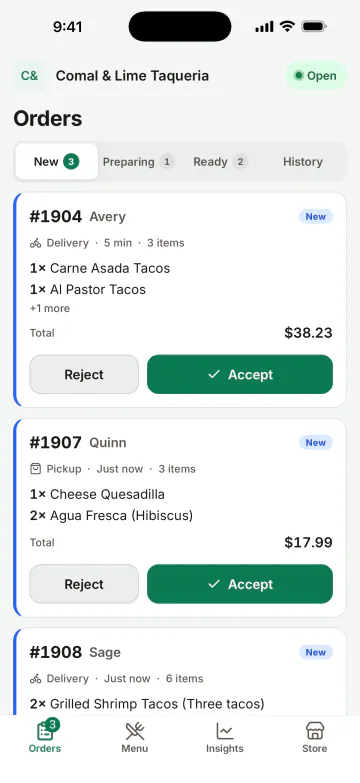
Orders
New, preparing, ready and history.
-
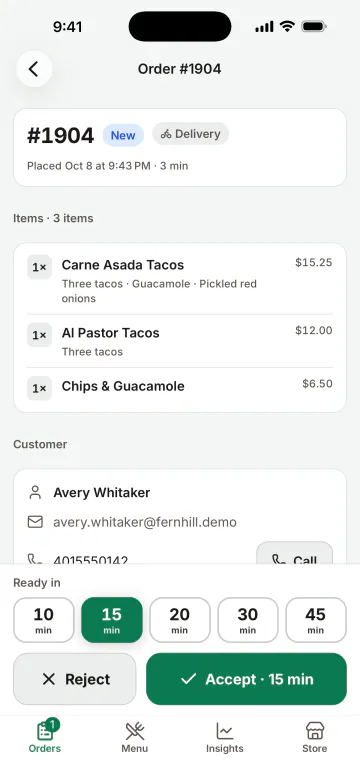
One order
The items, the notes, accept or reject.
-
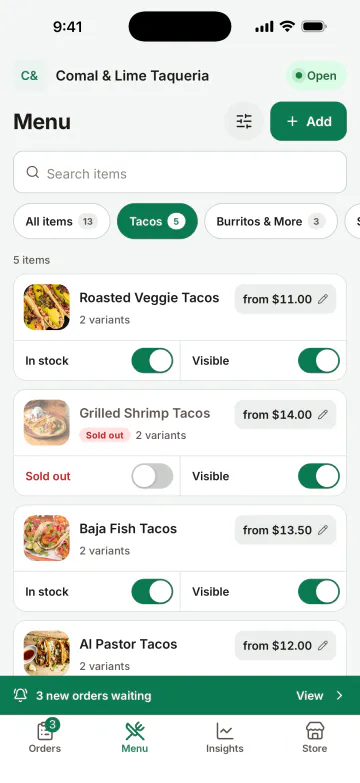
Menu & stock
Every item, with an in-stock switch.
-
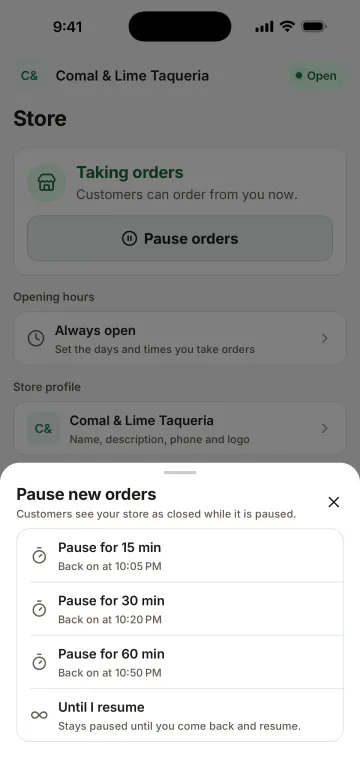
Pause
Stop new orders until they are ready again.
An order nobody can miss.
With the app open, a new order takes over the whole screen with a ringing bell, and it keeps ringing until someone taps. With the app closed, it arrives as a push notification with its own sound.
- Rings through silent mode on iPhoneAnd keeps the screen awake while the alert is up.
- A nudge every 30 secondsFor any order still waiting on a decision.
- Every member of the store's staff gets itIn their own language, English or Arabic.
Good to knowThe repeating ring needs the app open. With it closed the push sounds once, so sellers keep the app up during service: a tablet by the till does the job.
Accept, reject, ready. One tap each.
Orders sit in four tabs: New, Preparing, Ready and History. Each card counts down the prep time the seller promised.
- Accept with a prep time10, 15, 20, 30 or 45 minutes. The customer sees when it will be ready.
- Reject with a reasonToo busy, item unavailable, store closing, or other. The customer's tracking screen shows why.
- Mark it readyThe customer's status changes to ready on the spot.
- The whole order on one screenItems with options, add-ons and the customer's note, a call button, the payment method, and a price breakdown that marks your service fee as not part of their payout.
- History, searchable by order number
Every seller has a menu. They update it. Not you.
A seller builds the whole menu from the phone, and your storefront and customer app show the change on their next load.
- Categories, items, prices and photosWith names in English and Arabic.
- Options with variants priced separately, and paid add-ons
- Sold out in one switchThe item stays on the menu but can no longer be added to a cart. Switch it back tomorrow.
- Hide an item entirelyIt disappears from the storefront and the app until they show it again.
- Opening hours per day, or always open
Slammed? Pause. It un-pauses itself.
A seller stops new orders for 15, 30 or 60 minutes, or until they resume. Customers see the store as closed, checkout refuses new orders, and the pause ends on its own.
- The pause switch is in the header of every tab
- Orders already placed carry on as normal
- “Back on at 7:30”: the app shows when it ends
Where is the driver? On the map.
On a delivery order, once a driver has accepted, the seller sees a live map with the driver, the store and the drop-off, and can call the driver from the order.
- The driver's position, liveWith a note of how fresh it is.
- “Waiting for a driver to accept” until one does
- Call the driver, call the customer
How is the store doing? One tab.
Sales, orders, average order and the top five items, for today, the last 7 days or the last 30, each compared with the period before.
Good to knowSellers see sales, not commission or payout figures. Those stay with you, in your commissions report.
- Orders by hour today, per day over a week or a month
- Sales means what customers were chargedAfter discounts, including the delivery fee they paid, without your service fee and without rejected or canceled orders. It is before commission, so it is not the payout.
And a web panel, for the laptop people.
Every seller also gets its own section of your admin portal: the menu, opening hours, delivery and pickup options, discounts and order history, on a big screen.
Good to knowThe web panel has no new-order alert, no prep time and no sold-out switch. Those live in the app, which is where the kitchen is.
- The full menu builder, on the web
- Discounts for their own storeA seller's staff create them; they only ever apply at that seller.
- Staff see their own seller, and nothing else
How it runs today.
-
Keep the app open
The alert that rings until someone answers runs while the app is open. Closed, the seller gets one push sound per order.
-
You invite, they sign in
You send a seller's staff an invite from the portal. They set a password and sign in with their email.
-
Sellers reject, you cancel
A seller can reject an order before accepting it. Canceling one that is already under way is your call, in the portal.
-
Built by our team
The app carries your marketplace's name and icon, built and sent to the stores by us. It comes with the Growth plan and up.
More for your sellers.
- Order Manager The alert, the tabs, the order screen.
- Products & Variants Full catalog control for each seller.
- Opening Hours Hours, open now, and pause.
The other screens of your marketplace: customer app, driver app, admin portal.
Every virtual brand is a seller, with its own vendor app sign-in.
For ghost kitchens: how brands map onto sellers, why the app shows one brand at a time, and a calculator for the commission on the orders you move to your own channel.
Sign the sellers. We equip them.
Tell us what you'd build. We'll help you launch it: your storefront, your sellers, your brand, live in under a week.
Rather talk first? Book a demo.