Draw a delivery zone
Add a delivery zone, always a rectangle, by drawing it on the map or typing its center and size.
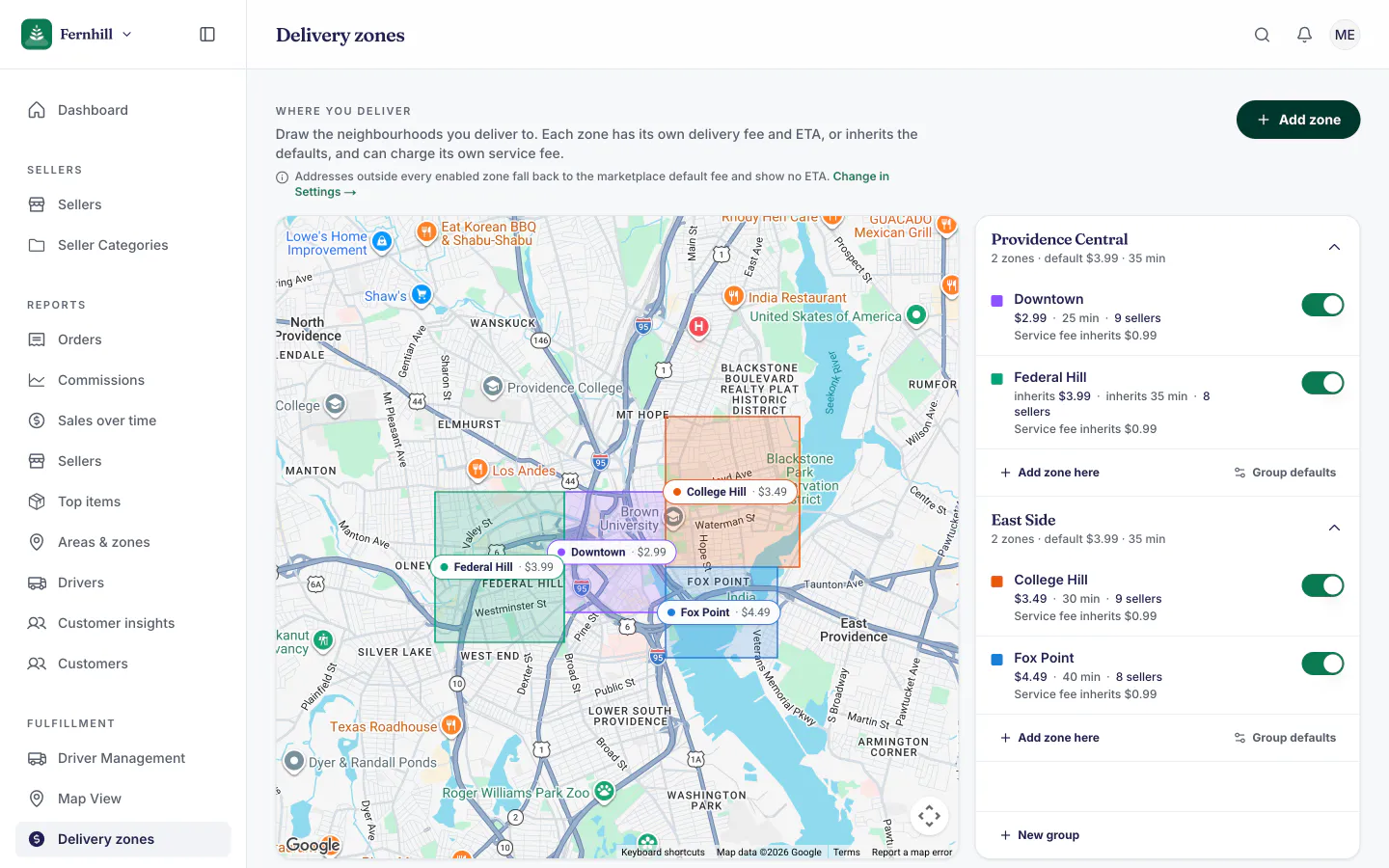
You add a zone by drawing a rectangle on the map. Every address whose map pin falls inside the rectangle belongs to the zone.
Before you start
- You need the Owner, Brand Group Admin or Dispatcher role.
- Decide the zone’s delivery fee and delivery time. See Delivery fee and delivery time per zone.
Steps
- In the sidebar, under Fulfillment, open Delivery zones.
- Press Add zone. On an empty page the button reads Draw your first zone. With several groups, you can press Add zone here on a group instead.
- Enter a Zone name. Customers see this name, so use one they know.
- If you have more than one group, choose the Group.
- Under Where is it?, press Draw Zone.
- Click on the map and drag to the opposite corner. Release. The map returns to Select mode.
- In Select mode, drag the rectangle to move it. Pull its corners or edges to resize it.
- Set the Delivery fee and the Estimated delivery time, or leave them on the group default.
- Press Add zone. The zone appears on the page map and in the list, switched on.
To edit a zone later, press the pencil on its row, change it and press Save zone.
Type the size instead of drawing
- In the zone dialog, open Or type a center and size.
- Enter the Center latitude and Center longitude.
- Enter the Width (km) and Height (km).
- Press Apply. The rectangle is placed on the map and its four bounds are shown below the fields.
What others see
Customers see nothing of the drawing itself. Inside the rectangle they see the zone’s name, fee and delivery time under their address, for example “Delivers to” followed by the zone name.
Good to know
- A new zone starts at the center of your marketplace’s map, 3 km wide and 3 km high.
- Your other zones are shown in gray behind the one you are editing, so you can line them up.
- On the page map each zone has its own color and a label with its name and fee. A zone that is switched off looks faint, with its name struck through.
- Zones may overlap and nothing warns you. Which zone applies in the overlap is not defined, so avoid overlaps.
- A zone saved without a rectangle is marked “Not on map”. It matches no address.
- The zone dialog also holds the service fee and the list of sellers. See A different service fee per zone and Which zones a seller delivers to.
If something goes wrong
- “Draw the zone on the map first (or type a center and size).” The zone has no rectangle yet. Draw one or use the typed fields.
- A message says a single click has no size. You clicked without dragging. Press Draw Zone and drag.
- “Enter a valid center latitude and longitude.” or “Width and height must be more than 0 km.” Correct the typed values and press Apply again.
- The map is a gray box, or you see “Google Maps failed to load”. The map service did not load. Reload the page. If it keeps happening, contact Upzaar, because the map key is set by Upzaar’s team.