Road routes and arrival times: what they need
Know which screens show a road route or a live arrival time, which do not, and what Upzaar's team has to set up for them to work.
Upzaar can draw the road route a driver is taking and keep an arrival time up to date as the driver moves. Both depend on Google’s Directions service, which Upzaar’s team sets up. You cannot switch it on yourself. Without it, each screen falls back to something simpler.
How it works
There are two arrival times.
- The estimate at acceptance. Worked out once, when a driver accepts. It allows for the drive to the seller or the preparation time, whichever is longer, plus the drive to the customer. Before a driver accepts, it is the seller’s preparation time plus 20 minutes.
- The live arrival time. Recalculated as the driver moves, at most about once every 45 seconds, together with a road route to the next stop. It allows for a wait at the seller when the order is not ready yet.
What each screen shows
| Screen | Road route | Arrival time |
|---|---|---|
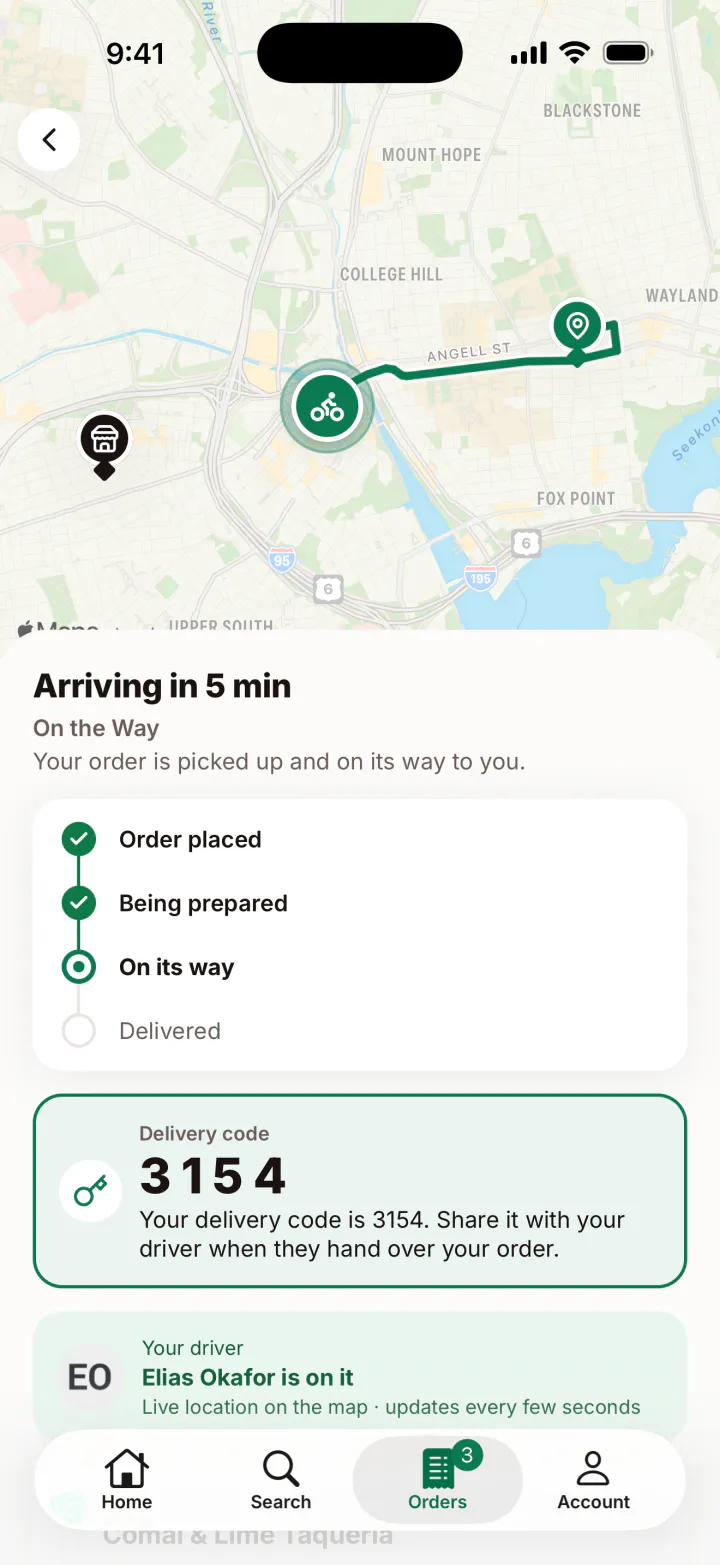
| Customer app, order tracking | Yes, when Google Directions is set up for Upzaar’s servers | Live (“Arriving in” a number of minutes). Otherwise the estimate at acceptance, as a clock time |
| Admin panel, Map View | Yes, when Google Directions is enabled for the admin panel’s map. Otherwise a straight dashed line | The time now plus the route’s duration, worked out in your browser |
| Vendor app | No | “Expected by”, from the estimate at acceptance |
| Storefront order page | No | “ETA”, from the estimate at acceptance. The page does not refresh by itself |
| Driver app | No. A straight dashed line to the next stop | None |
Drivers navigate with Apple Maps or Google Maps. The driver app opens one of them from its “Navigate” buttons.
What others see
When Directions is not available:
- Customers still see the driver moving on the map, with an arrival clock time from the estimate and no route line.
- You see a straight dashed line on Map View, the word “Direct line” on the Route card, and an amber notice that gives the reason.
Nothing fails. Orders, offers and deliveries work the same.
Good to know
- The live route covers one leg at a time: to the seller until pickup, then to the customer.
- Routes are for driving and avoid toll roads.
- If the estimate at acceptance cannot be worked out, the driver’s acceptance still goes through. The time falls back to the seller’s preparation time plus 20 minutes.
- The delivery time you set on a zone is a different number. It is the estimate customers see before they order.
- No arrival time is used for pricing.
If something goes wrong
The amber notice on Map View tells you why a straight line is shown:
- It says road routing is off because the Directions API is not enabled. Upzaar has to enable it. Contact Upzaar.
- It says road routing hit its Google Maps quota. The service has reached its usage limit for now. Contact Upzaar if it keeps happening.
- It says Google Maps could not find a road route between these points. One of the pins is probably in the wrong place. Check the seller’s map pin and the customer’s address.
- It says road routing is temporarily unavailable. Wait and reload the page.