Follow a delivery on the map
Use Map View to see pending, active and completed deliveries and watch one driver at a time, and know which parts need a page reload.
Map View lists your deliveries and shows one of them on a map. It is a screen for watching. Nothing on it assigns or moves a delivery.
Before you start
- You need the Owner, Brand Group Admin or Dispatcher role.
- Driver delivery must be on. If the page shows “Delivery Functionality Disabled”, see Turn on delivery with your own drivers.
Steps
- In the sidebar, under Fulfillment, open Map View.
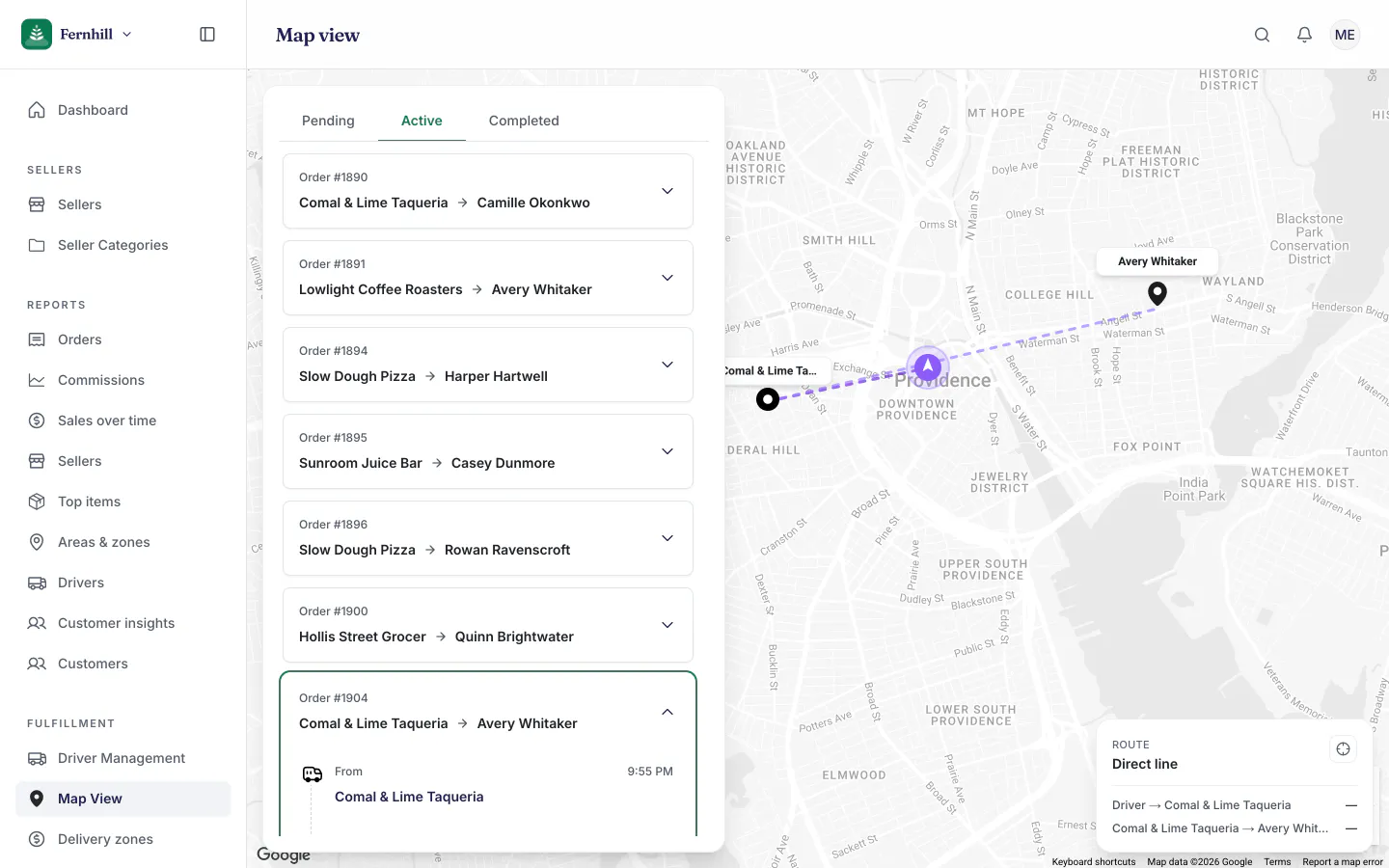
- Choose a tab: Pending (no driver yet), Active (a driver has accepted) or Completed.
- Click a delivery card to open it. The map appears and shows that delivery: the pickup with the seller’s name, the drop-off with the customer’s name, and the driver as a purple arrow once one has accepted and shared a position.
- Read the Route card for the duration, the distance and an arrival time.
- Click the phone icon on the card to copy the driver’s phone number.
- Press View Order Details to open the order’s own page, with the delivery summary, the driver, the delivery code block, the customer, the payment and the items.
How it works
What updates by itself
| Part of the page | How it updates |
|---|---|
| The position of the driver on the delivery you opened | Live |
| The Active tab | Every 30 seconds |
| The Pending and Completed tabs | Only when you reload the page |
| The order page behind View Order Details | Only when you reload the page. The driver marker stays where it was when the page loaded. |
A new delivery, a driver’s acceptance or a cancellation does not appear on Pending until you reload.
The route line
The map draws a road route from the driver to the seller until pickup, then from the driver to the customer. With no driver yet, it draws the route from the seller to the customer. If a road route cannot be worked out, the map draws a straight dashed line, the card reads “Direct line” and an amber notice says why. See Road routes and arrival times.
Good to know
- The map shows one delivery at a time. There is no view of all drivers, and with no delivery opened there is no map.
- Each tab lists 25 deliveries, oldest first, with no further pages. On a busy marketplace the Completed tab does not reach recent deliveries, and Pending can hide the newest. Use the orders list to find a recent order.
- There is no list of canceled deliveries.
- The ETA cell inside a delivery card always shows a dash. Use the Route card or the order page instead.
- The arrival time on the Route card is worked out in your browser as the time now plus the route’s duration. It is not the arrival time the customer sees.
- While a delivery stays open on the page, its route leg does not switch after pickup. Reload, or open the card again.
- On the order page, a guest order shows no customer name, and a missing time can read “Invalid Date”.
- A pickup order has no map.
If something goes wrong
- A delivery you expect is missing. Reload the page. If it is still missing, the tab may be showing its 25 oldest only. Find the order in the orders list.
- The driver arrow does not move. The driver may be offline, may have closed the app, or may have no signal. Positions are sent about every 10 seconds while the driver is online.
- “Google Maps could not be loaded.” Reload the page. If it continues, contact Upzaar.