How delivery works from order to door
Follow a delivery order from checkout to the customer's door, and see what each person does and sees at every step.
This article follows one delivery order from checkout to the door. It assumes your marketplace runs delivery with its own drivers. If it does not, read the last section.
How it works
1. The customer checks out
The customer chooses a delivery address. Upzaar finds the delivery zone that contains the map pin and adds that zone’s delivery fee to the order. See Zone groups and zones and Addresses outside your zones.
Every delivery order also gets a four-digit delivery code. See Delivery codes.
2. The seller accepts the order
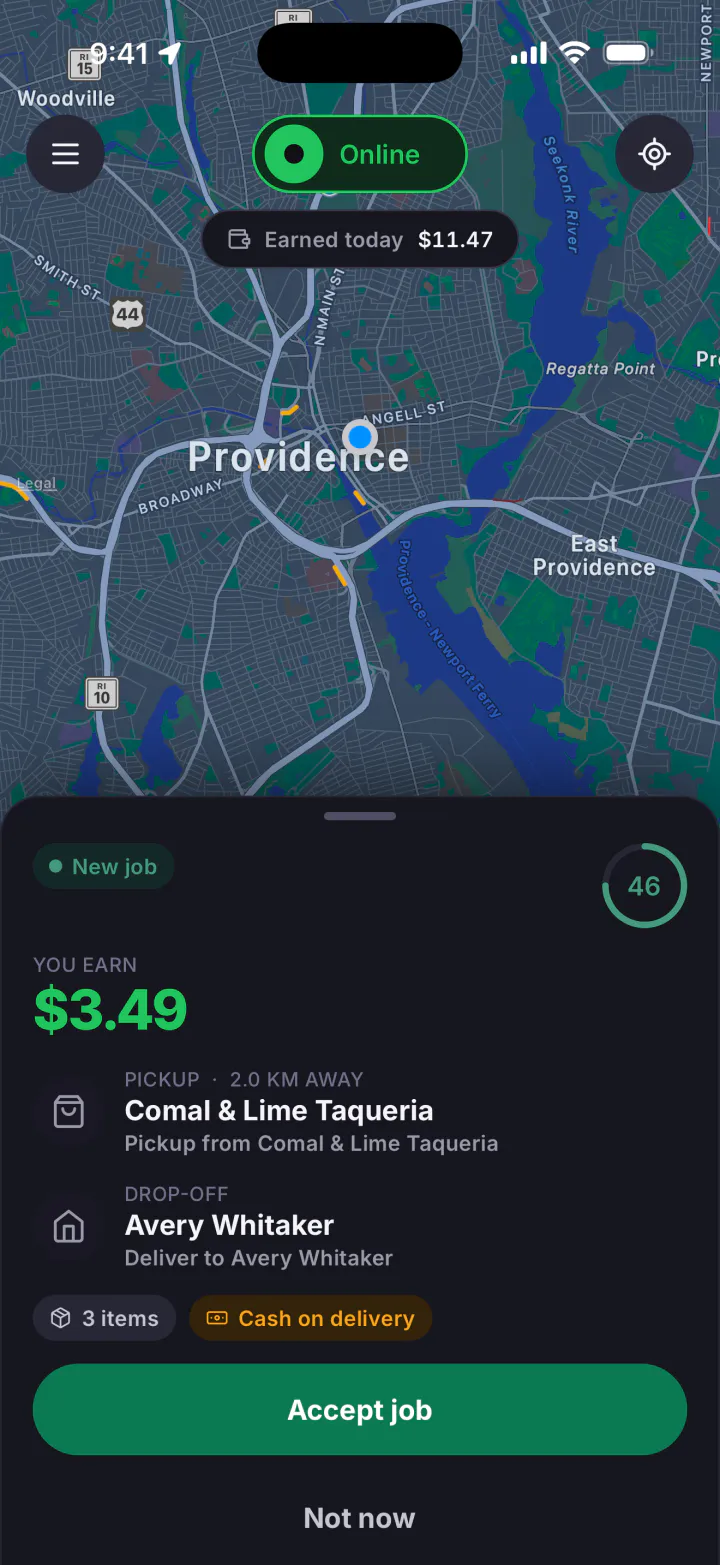
Nothing happens for drivers until the seller, or you, accepts the order. At that moment Upzaar creates one delivery job for the order. The job has two stops: pickup at the seller, then delivery to the customer.
An order that nobody accepts stays new. There is no automatic acceptance and no timeout.
3. The job is offered to drivers
The job is offered at once to every driver who qualifies. The first driver to accept takes it. Nobody assigns the job, and the offer does not expire. See Who gets offered a delivery.
4. The driver picks up
The driver goes to the seller and taps “Confirm pickup” in the driver app. The order moves to out for delivery.
5. The driver delivers
The driver goes to the customer and taps “Confirm delivery”. If you require delivery codes, the driver types the customer’s code first. The order is then completed. The driver earns the delivery fee. On a cash order the cash is recorded against the driver.
What others see
| Step | Admin panel | Vendor app | Customer app | Driver app |
|---|---|---|---|---|
| Order placed | New | New | Awaiting acceptance | Nothing yet |
| Seller accepts | In Progress | Preparing | In progress | A new job offer |
| Driver accepts | In Progress | Driver details on the order | Driver card and live map | Heading to pickup |
| Driver confirms pickup | Out for Delivery | With driver | On the way | Heading to drop-off |
| Driver confirms delivery | Completed | Completed | Delivered | Delivered |
The storefront website shows the order’s status when the page loads. It does not update by itself.
Good to know
- One driver handles one job at a time in the driver app. Orders are not batched.
- A pickup order has no delivery fee, no zone check, no delivery code, no job and no driver. The seller completes it when the customer collects.
- The seller’s “ready” mark tells the customer the order is ready. The driver app does not show it.
- If an order is canceled or rejected, its delivery job is closed with it. The driver app does not announce this. The job disappears the next time the app refreshes.
- You follow deliveries on the map, but you cannot assign or move them. See Assigning or reassigning a delivery.
If you do not run your own drivers
With driver delivery switched off, a delivery order still gets a delivery fee and a zone check. It gets no job and no driver. The seller delivers it by their own means, so the delivery fee is the seller’s and counts in their sales and payout due. On orders your own drivers deliver, the fee is the marketplace’s and pays the driver. The seller or your team then finishes the order with Mark as completed. To switch driver delivery on, see Turn on delivery with your own drivers.