Delivery codes: switch them on, unlock a delivery, complete without the code
Make drivers enter the customer's four-digit code at the door, unlock a delivery after five wrong codes, or complete an order without it.
Every delivery order gets a four-digit delivery code. The customer sees it with their order. When you require codes, the driver must type the customer’s code to complete the delivery. It is your proof that the order reached the right person.
Before you start
- You need the Owner or Brand Group Admin role to change the setting.
- Make sure every driver has the latest driver app first. Older versions have no code entry and cannot complete deliveries once the setting is on.
Steps
Require the code
- Click your marketplace name to open the marketplace menu, then open Settings and General.
- Go to the Drivers section.
- Switch on Require delivery code.
- Press Save changes.
Unlock a delivery after too many wrong codes
- Open the order. In the Delivery code block the badge reads “Locked”.
- If you are unsure, call the customer and check that the right driver is at the door.
- Press Reset attempts and confirm. You can also use Reset delivery code attempts in the order’s row menu.
- Tell the driver to tap “Check again” and enter the code.
Complete an order without the code
- Open the order.
- Press Mark as completed. It carries an “OVERRIDE” badge.
- Confirm. The dialog warns you when the order needs a delivery code.
Use this when the customer cannot give the code, for example when their phone is off. It cannot be undone.
How it works
- The code is created for every delivery order, whether or not you require it. Pickup orders have none.
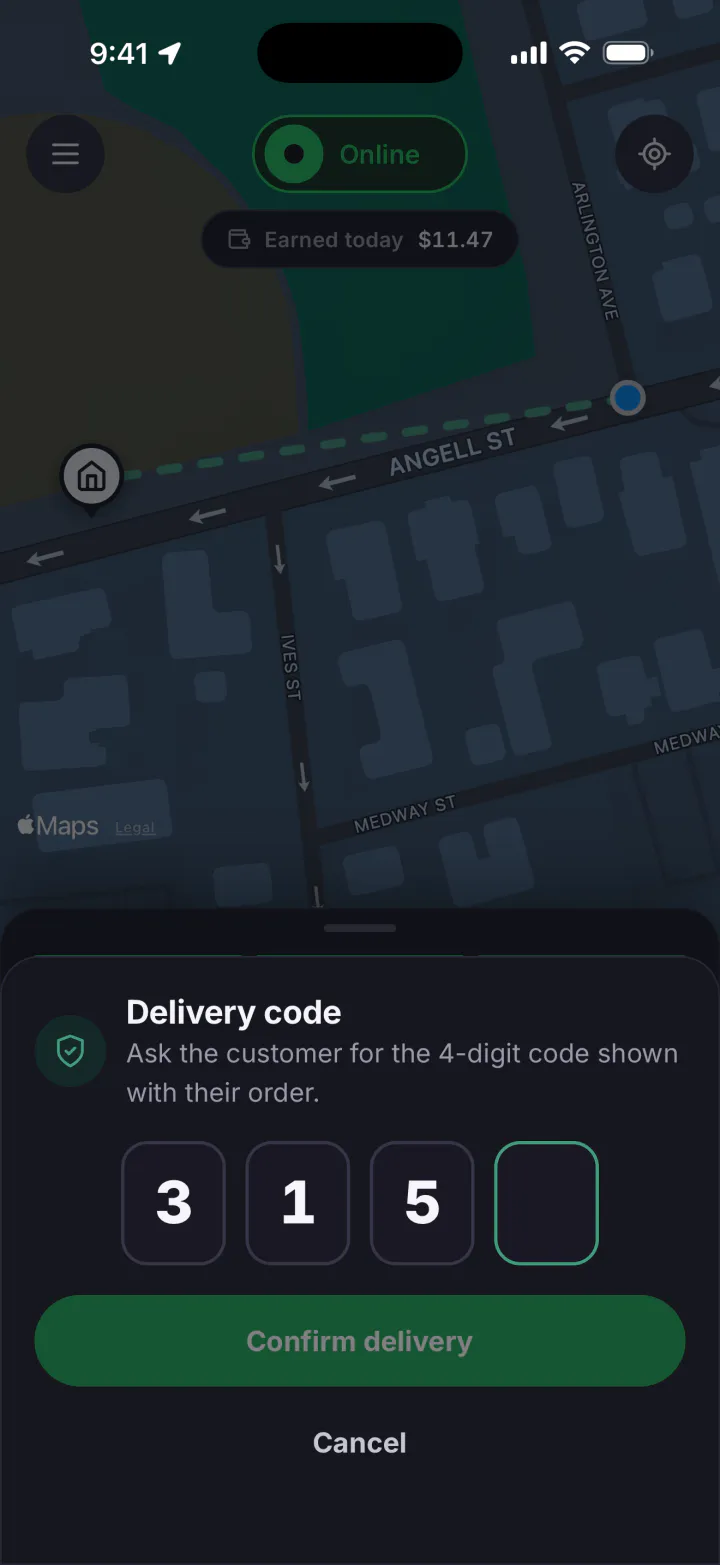
- With the setting on, the driver’s “Confirm delivery” opens a code sheet. The code is asked at the door only, never at pickup.
- A wrong code is counted. After five wrong codes the delivery is locked, and even the right code is refused until someone resets the attempts.
- Resetting clears the count. The code itself does not change.
- The driver never sees the code. Sellers never see it.
What others see
- Customers. The customer app’s tracking screen shows a “Delivery code” card with the four digits. The storefront order page shows “Your delivery code”. The customer app shows the code on every delivery order, even when you do not require it.
- Drivers. A sheet titled “Delivery code” asking for the customer’s four-digit code. After a wrong code they see how many attempts are left. When locked they see “Delivery locked” and are told to call support or the operator.
- You. The order shows a badge: “Required”, “Locked” or “Not required”. Owners and marketplace admins see Customer’s code hidden behind dots, with an eye button to show it.
Good to know
- The setting is off by default.
- Owners, marketplace admins, dispatchers and the order’s seller staff can reset attempts and mark an order completed, in the admin panel. The vendor app has neither action for delivery orders.
- Only owners and marketplace admins can read the code. Dispatchers and seller staff cannot.
- The panel does not show how many attempts have been used.
- The driver app has no phone number for you. Give your drivers a number to call when a delivery locks.
- After Mark as completed, a driver already on the road finishes without the code and is still paid. If no driver had accepted, the delivery job is canceled, no delivery fee is earned and no cash is recorded for any driver.
- If you switch the setting on while a driver is mid-delivery, the driver’s first confirm is refused and the code sheet opens then.
- Orders placed before delivery codes existed have no code and never need one.
If something goes wrong
- A driver cannot complete deliveries after you switched codes on. Their driver app is out of date. Ask them to update. Until then, complete their orders with Mark as completed.
- “Someone else changed this order at the same moment. Try again.” Two actions hit the order at once. Press Retry.
- “Your role can’t do this on this order, or the order belongs to a seller you don’t manage.” Your role does not allow the action on this order. Ask an owner or marketplace admin.