The customer's delivery code
Where a customer finds the 4-digit delivery code, when the driver needs it, and what to do when the code is refused.
Every delivery order gets a 4-digit code. The customer reads it to the driver at the door. The driver must type it only when you have switched on “Require delivery code”.
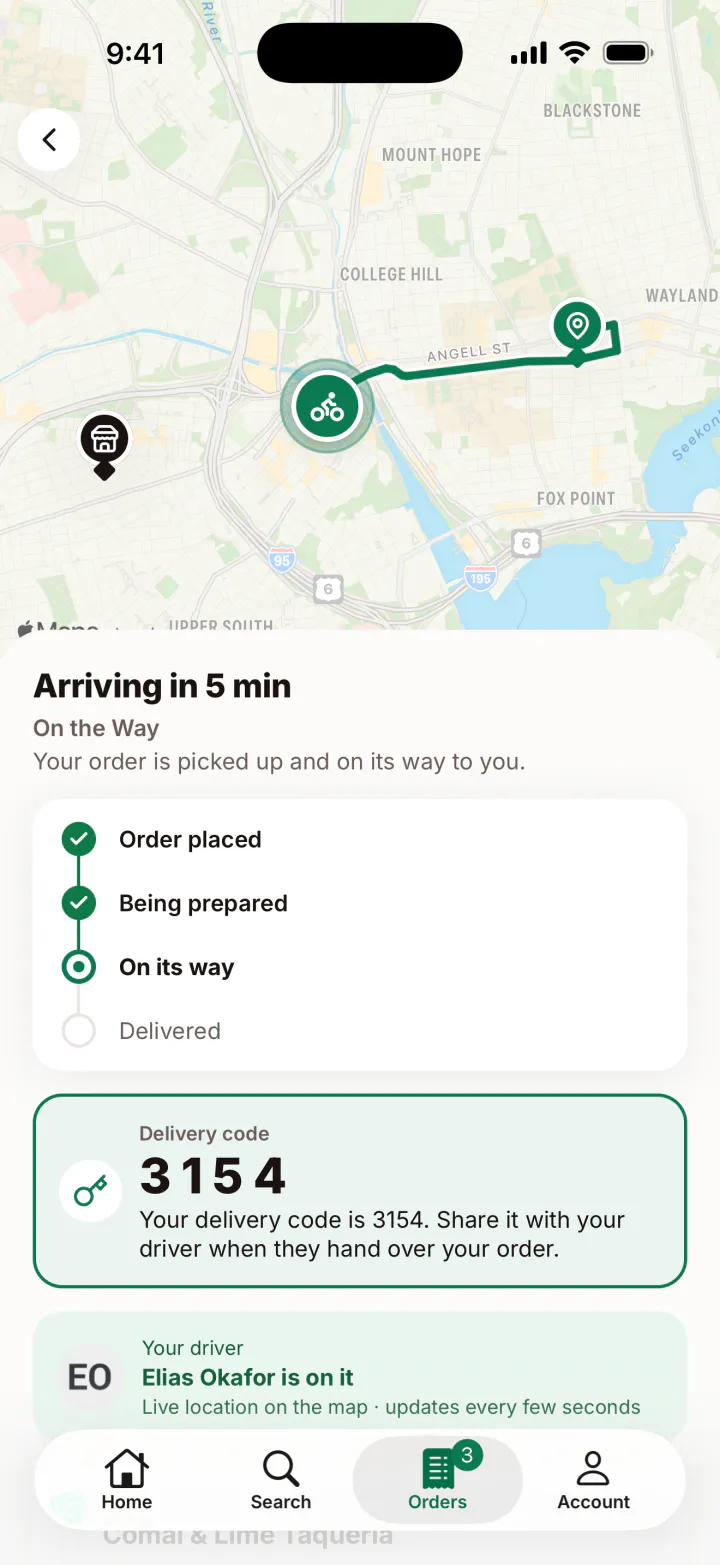
How it works
- In the app the tracking screen shows a “Delivery code” card with the four digits and “Give this code to your driver”.
- On the website the order page shows “Your delivery code” with “Share this code with the driver when your order arrives.”
The code is shown to the customer who placed the order, to a guest on the phone or browser that placed it, and to you as an operator. Sellers, dispatchers and drivers never see it.
Pickup orders have no code.
When you require the code
The driver’s “Confirm delivery” asks for the code. A wrong code is counted. After 5 wrong codes the delivery is locked, and even the right code is refused until you reset the attempts in the admin panel.
When you do not require it
The customer still sees the code, but the driver is never asked for it. Customers may offer it at the door anyway.
Good to know
- The code is on the order from the moment it is placed. It does not change.
- If you do not require codes, consider telling customers they can ignore it. The app shows it either way.
- On the website the code shows on a running delivery order. If it is missing, the customer should reload the page in the browser that placed the order.
- A guest who opens the order page in another browser does not see the code.
- If the customer cannot find the code, you can read it out. It is on the order in the admin panel, hidden behind “Show code”, for owners and admins only.
- You can complete the order yourself with “Mark as completed”. That skips the code.
If something goes wrong
| What happens | Cause | What to do |
|---|---|---|
| The customer cannot see the code | Not signed in to the account that ordered, or a guest on another device. | Read the code out from the admin panel after checking who they are. |
| The driver says the code is wrong | A mistyped digit, or a code from another order. | Ask the customer to read it again from the order. |
| The driver sees “Delivery locked” | 5 wrong codes. | Open the order in the admin panel and press “Reset attempts”, or choose “Reset delivery code attempts” in its row menu. |
| The customer is not there to give the code | The driver cannot finish without it. | Confirm the handover yourself, then use “Mark as completed”. |
Answer you can reuse
Your order has a 4-digit delivery code. You will find it on your order’s tracking page. Please give it to the driver when they hand over your order.