How customers set where to deliver
How a customer chooses a delivery address in the app and on the website, and how the map pin decides the fee.
A delivery address is a pin on a map plus a few text fields. The pin, not the text, decides which delivery zone the order falls in, and so the delivery fee and delivery time.
How it works
In the app
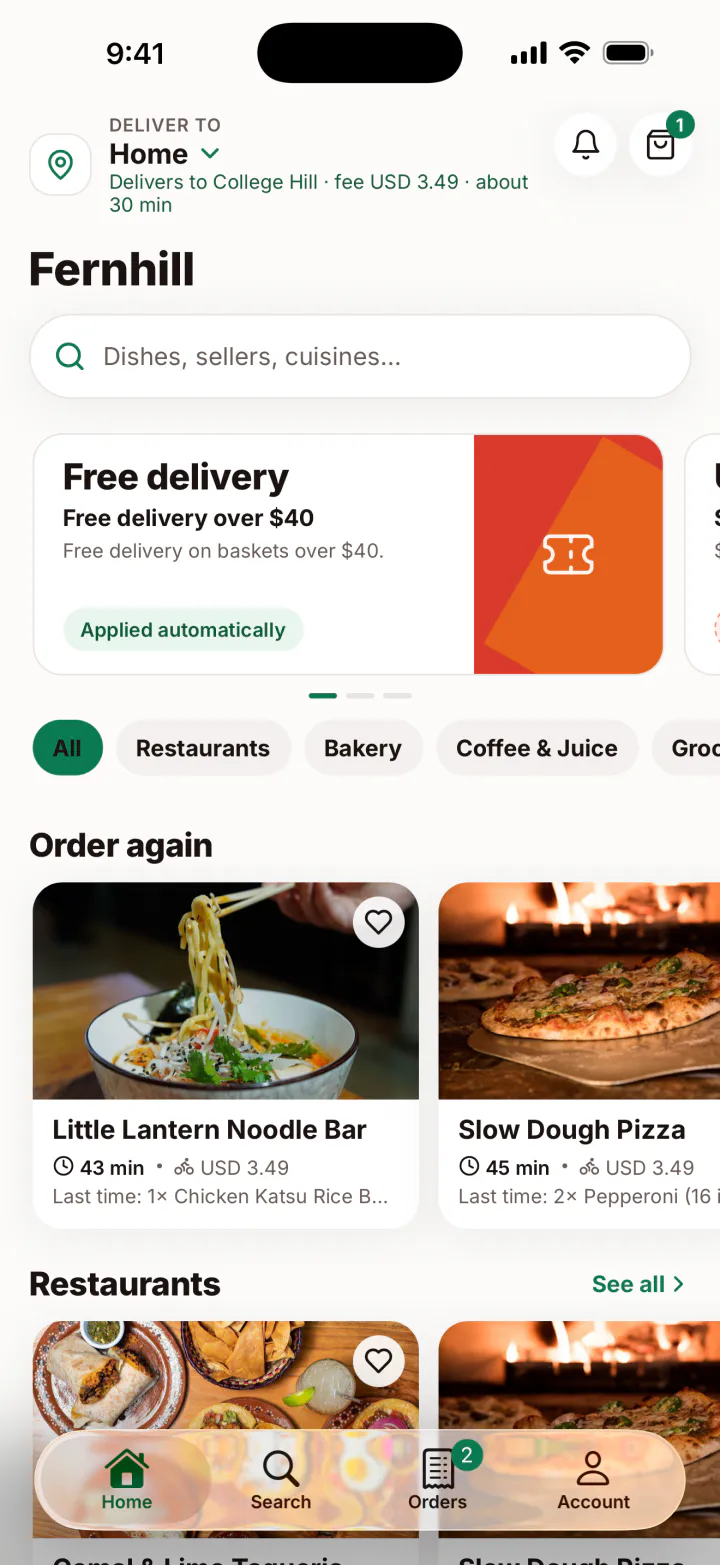
The top of Home shows where the app is delivering. Tapping it opens “Where should we deliver?” with three choices:
- “Your addresses” and “Add a new address”. Home reads “Deliver to”. Sellers are limited to those that deliver to that address.
- “Browse by area”, listing your zone groups with their fee and time. Home reads “Browsing”.
- “Show all sellers”. Home reads “Showing”.
A new address has a map with a center pin, “Search for a place”, “Use my location”, and the fields “Address name” (required), “Street name”, “Building”, “Apartment / floor” and “Instructions” (up to 300 characters).
Under the address the app shows a notice: the zone name, the fee and the time, or that the address is outside your zones.
On the website
A first visit opens “Select your district”, listing your zone groups. The choice names the area in the header and pre-fills the address form. It does not filter the sellers shown.
The real address is chosen at checkout, under “Delivery address”. The form has the map, “Use my current location”, an address search, the “District” dropdown, “Address name” (required), street, building, apartment and “Instructions”. The fee notice appears under the address card, and “Place order” stays off while the fee is being worked out.
Signed in or guest
A signed-in customer saves as many addresses as they like and reuses them in both clients. A guest has one address at a time, kept on the phone or in the browser only.
What others see
The seller and the driver see the address as it was when the order was placed. Editing or deleting a saved address later does not change past orders.
Good to know
- The pin is required. An address cannot be saved without a map position.
- On the website the “District” dropdown and the pin are independent. A customer can pick one district and drop the pin in another. The pin wins for the fee.
- On the website the form opens with the pin already on your marketplace’s map center. A customer who fills in the text and never touches the map sends that center point as the delivery location. If a driver reports a wrong location, check this first.
- On the website, refusing the browser’s location request does nothing and shows no message.
- There is no “default address” setting and no limit on the number of saved addresses.
- The website has no order note. What the customer types in the address “Instructions” is the only note the driver gets from the website.
If something goes wrong
| The customer sees | Cause | What to do |
|---|---|---|
| “Drop the pin on the map first.” (app) or “Please select a location on the map” (website) | No map position yet. | Move the map or search for the place. |
| “Permission not granted.” or “Couldn’t get your current location.” (app) | Location access is off for the app, or the phone has no fix. | Search for the address instead, or allow location in the phone’s settings. |
| “We don’t deliver to this address yet” | The pin is outside your zones and you refuse those addresses. | See the article on addresses outside your zones. |
| “We couldn’t work out delivery to this address” (website) | The fee request failed. | “Try again”, or choose another address. |
Answer you can reuse
Move the map until the pin sits on your door, then add your building and any directions for the driver. The pin decides your delivery fee, so please check it before you place the order.