How customers find sellers and items
What customers see on the home screen and in search, what search matches, and why a seller or item may not appear.
Customers find sellers by browsing the home screen, by category, and by search. Search covers seller names and item names in English and Arabic.
How it works
Home
- In the app: category chips, one row of sellers per category, “Your favorites”, “Order again”, and “Popular near you”.
- On the website: your hero banner and offers, category chips (shown when you have more than one category), and the seller cards.
Each seller sits in one category. Seller cards show “Open now” or “Closed”, and “Delivery” or “Pickup”.
Search
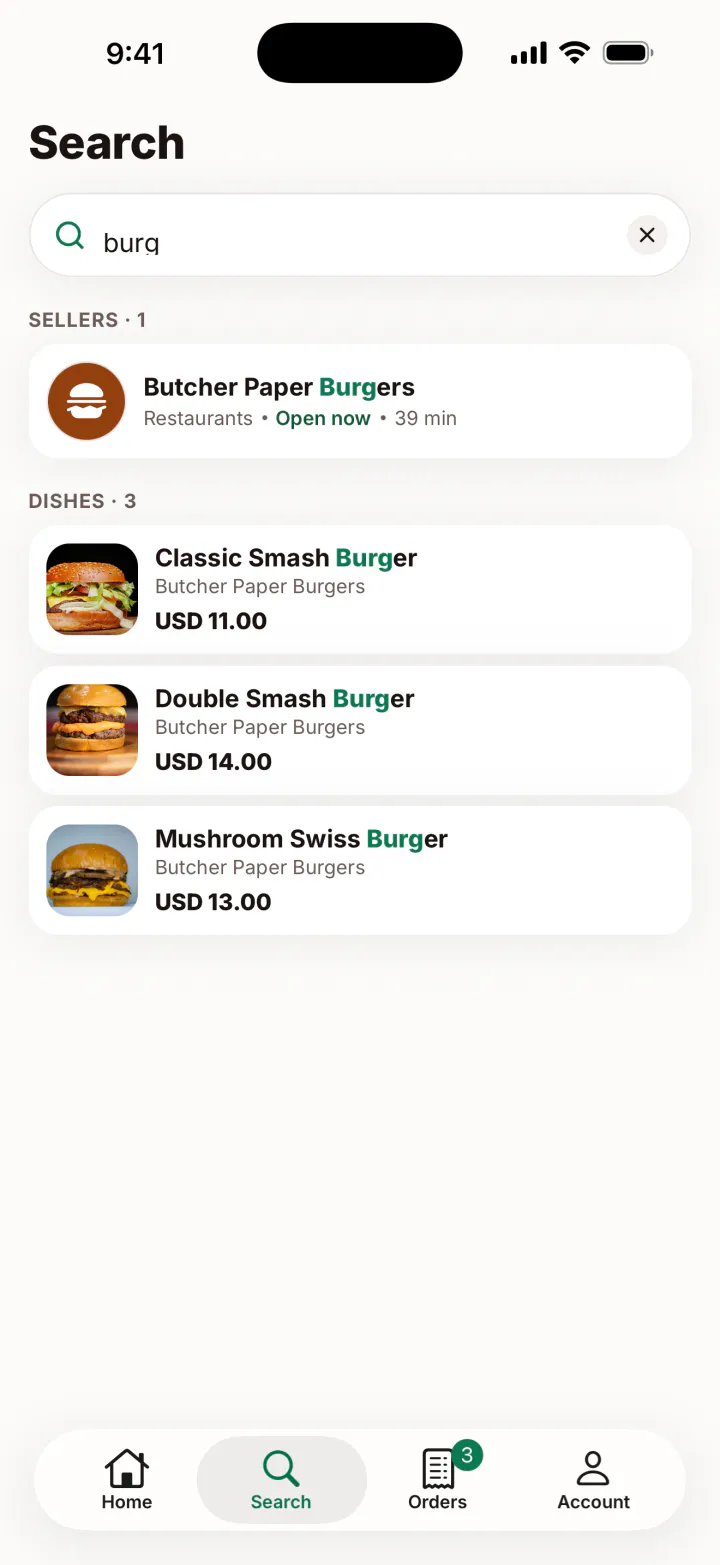
- In the app: the Search tab, with “Browse by category” and “Popular sellers”. Results are grouped “Sellers” and “Dishes”.
- On the website: the magnifier in the header, with the tabs “Items” and your word for sellers.
What search matches:
- A seller’s name and description.
- An item’s name and description.
- Each word typed must match the start of a word. “chick” finds “Chicken”. “icken” does not.
- Words shorter than three letters are ignored.
What search does not match: category names, add-on names, option names. It does not correct spelling.
Popular lists (app only)
“Popular near you” ranks sellers by the number of orders in the last 30 days. A “Popular” tag marks a seller’s five most ordered items. “Also ordered with” suggests items on the item screen. These are worked out from orders. You cannot pin or feature a seller or an item.
Good to know
- Sellers appear in no order you can set. There is no way to rank or pin sellers.
- Closed and paused sellers still appear in lists and in search.
- Sold-out items still appear in menus and in search. Hidden items never do.
- Popular lists refresh every 10 minutes and leave out canceled and rejected orders.
- Search results on the website show the item, the seller and a photo, but no price.
- In the app, the “Try searching” suggestions are a fixed list of dish names. They are the same for every marketplace and may not match what your sellers offer.
- The seller list in both clients is expected to stop at 25 sellers. If you have more than 25 sellers and some are missing for customers, contact Upzaar.
If something goes wrong
| The customer says | Cause | What to do |
|---|---|---|
| “I searched and found nothing” | A two-letter word, a spelling slip, or a category or add-on name. | Ask for the seller or item name, at least three letters. |
| “A seller I know is missing” (app) | Home is set to an address or area the seller does not deliver to. | Tap the location bar and choose “Show all sellers”. |
| “An item has disappeared” | The seller hid it. | Ask the seller. Hidden items are removed from menus and search. |
| “Search isn’t available right now” (app) | Search could not be reached. | Try again in a moment. |
Answer you can reuse
Type the name of the seller or the item you want, using at least three letters. If you cannot see a seller, tap the address at the top of the home screen and choose “Show all sellers”.