How customers track an order in the app
What the app's live tracking screen shows at each step, what updates by itself, and what the arrival time depends on.
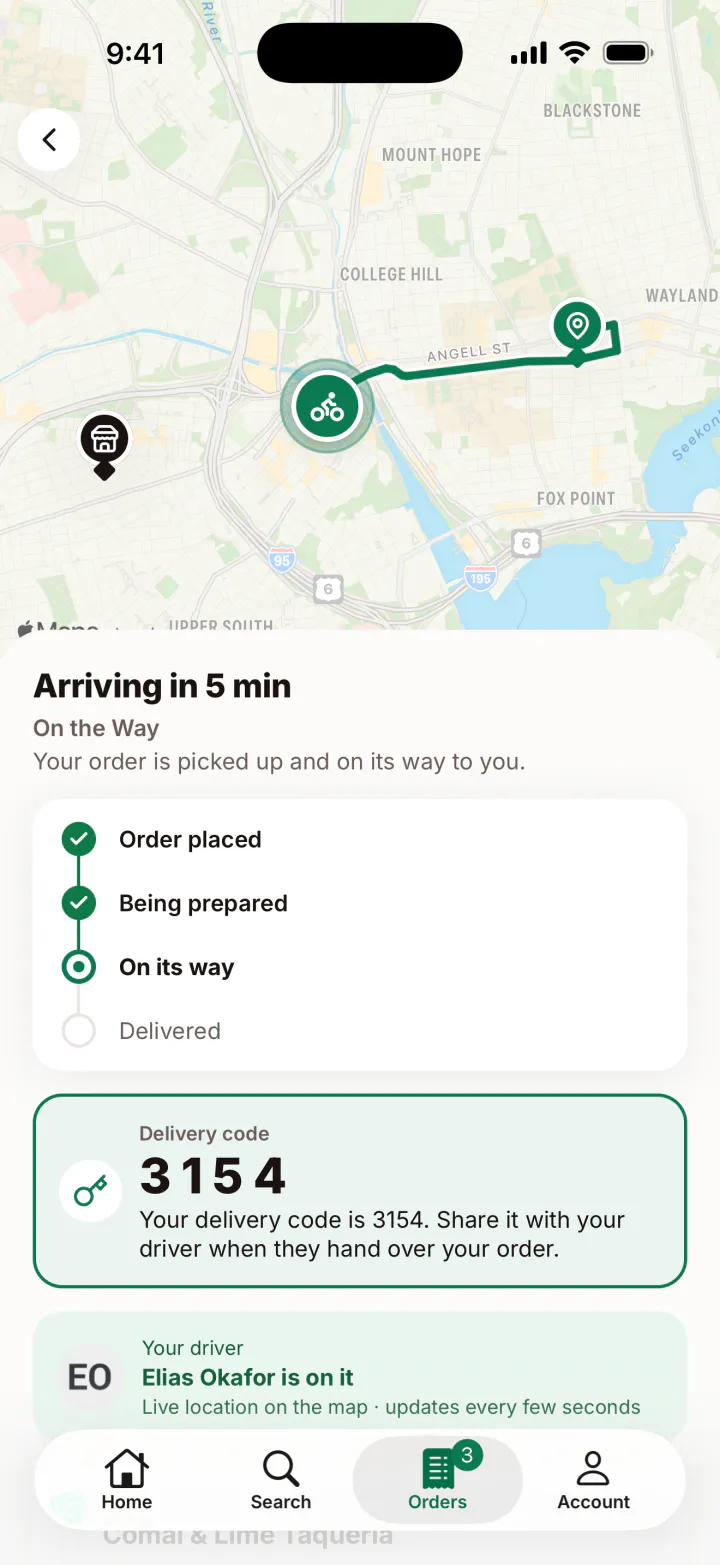
The app’s tracking screen follows an order from “Order placed” to “Delivered” without the customer refreshing anything. It shows a map, a status timeline, the driver and the delivery code.
How it works
The customer reaches the screen from “Track order” on the confirmation, or from an order under “Active” on the Orders tab.
What is on the screen
- A map with the seller’s pin and the customer’s pin. Once a driver has accepted the delivery, the driver’s marker appears and moves.
- A headline: the status, with an arrival time when one is known.
- A timeline. Delivery: “Order placed”, “Being prepared”, “On its way”, “Delivered”. Pickup: “Order placed”, “Being prepared”, “Ready for pickup”.
- A driver card with the driver’s name and photo: “Your driver”.
- The “Delivery code” card, for delivery orders.
- The receipt, and “Cancel order” while canceling is still allowed.
What the customer reads at each step
| Step | Status line |
|---|---|
| Placed, waiting for the seller | “Order placed.” and “Waiting on store to accept your order.” |
| Accepted | “Store is preparing your order” |
| Marked ready by the seller | “Order is ready” (delivery) or “Your order is ready” (pickup) |
| Driver collected it | “On the Way” and “Your order is picked up and on its way to you.” |
| Delivered | “Delivered.” |
| Rejected by the seller | “Rejected”, with the seller’s reason in one sentence |
| Canceled | “Canceled” and “This order was canceled.” |
The arrival time
When a driver accepts, the app shows “Arriving” with a clock time. With road routing set up for your marketplace, the app instead counts down “Arriving in 12 min” and draws the driver’s route on the map.
Good to know
- Updates are live while the app is open. In the background the app stops listening and catches up when reopened.
- The customer never sees the driver’s phone number. There is no call, message or chat button.
- The driver’s position shows only while the delivery is under way. Before a driver accepts, the card reads “Location will appear once they set off”.
- An order that nobody accepts stays on “Waiting on store to accept your order.” Nothing times it out.
- When you complete a delivery order by hand on a marketplace without drivers, the customer’s status stays on “Order is ready” and never reads “Delivered”.
- Guests can track on the phone that placed the order.
If something goes wrong
| The customer sees | Cause | What to do |
|---|---|---|
| “We couldn’t find this order” | Another account, or a guest order from another phone. | Check which account or device placed it. |
| “Sign in to see this order” | The session ended. | Sign in again. |
| “Too many tries” | Many failed lookups in a short time. | Wait a few minutes. |
| No driver on the map | No driver has accepted yet, or the driver’s phone is not sending its position. | Check the delivery on your Map View. |
| Stuck on “Order placed.” | The seller has not accepted. | Contact the seller, or accept or reject the order yourself. |
Answer you can reuse
Open your order in the Orders tab to follow it live. You will see when the seller accepts it, when it is ready, and your driver on the map once they are on the way.